Goals in Target Setting
This article provides information on setting target goals. Two types of goals can be set for targets: dynamic and static. Static goals are fixed, unchanging targets or benchmarks that guide revenue-generating activities. When setting up a target, it is necessary to set an annual goal. Dynamic goals are targets that can change and adapt based on real-time data and performance metrics.
- Access your Fullcast instance and switch plans if applicable.
- Click Manage Targets on the Territories tile.
- Click the Add button.
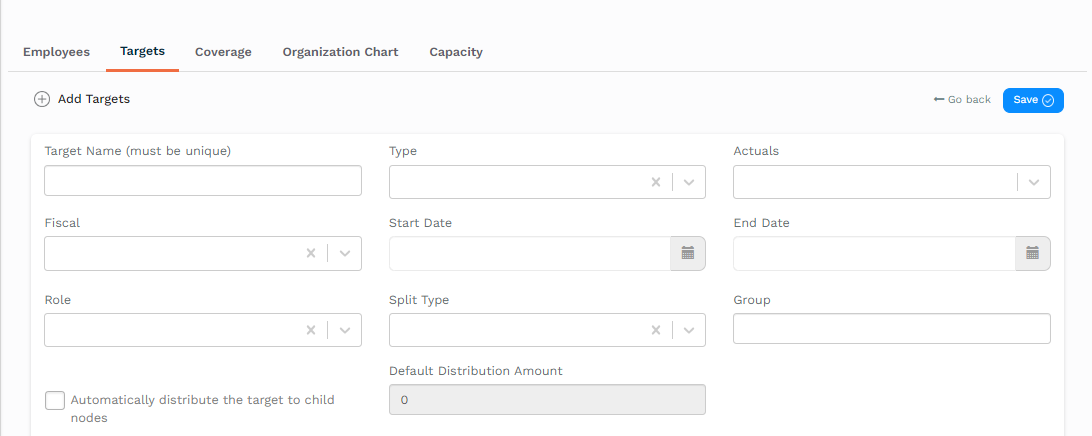
- Complete the Add Targets section based on the information provided in the table below:
| Option |
Action/Description |
| Target Name |
A unique identifier for the target. |
| Type |
Select timeseries. This is where the target is typically broken down into a month-by-month schedule. |
| Actuals |
This metric measures the actual progress of the target. Every target must have a metric. |
| Fiscal |
The fiscal year that the target is for. |
| Start Date |
The date this target started. |
| End Date |
The date this target is set to end. |
| Role |
No target can be created without having a person in a role responsible and accountable for it. All targets must be assigned to a specific role, and when a person is assigned to that role – they would inherit the target. |
| Split Type |
Identifies whether people in the same role split the target or get the whole target. |
| Group |
A label is used to group targets for easy representation. This has no impact on functionality. E.g. In a compensation plan, targets are usually measured under various categories. It is better to use hashtags (#) to name groups. |
- Click Goal to expand the goal options and enter the goal amount in the formula edit box.
- Set your goal based on the information provided in the table below:
| Goal Type |
Directions |
| Static |
- Input a value and formula as applicable.
- Proceed to step 7.
|
| Dynamic |
- Drag the sales metric from the list of available formula elements.
- Select a node in the hierarchy.
- Select a fiscal year to use.
- Enter *1.3 after the variable (this increases the sales quota by 30%).
- Confirm the value and final goal.
- Proceed to step 7.
|
- Click Distribution and select a distribution method from the dropdown menu.
- Click the Save button.
